If you have a blog on Google Blogger, there’s no doubt that you would be already interacting with codes, usually while updating your blog, adding new features, and whatnot.
And you also know that Google Blogger doesn’t provide you with an easy option to add these modern buttons. Moreover, no plugins are available that you can easily use in Blogger unlike in the case of WordPress. Hence, whenever you wish to add these buttons, you will need to do a lot of coding.
But worry not, as in this article, you will get to know all about how you can create the different kinds of beautiful looking HTML CSS buttons – with just no coding language required.
We’ve created the buttons for your use case; all you have to do is copy and paste these button codes (depending upon your requirements) and make the necessary changes, such as link updates.
Each button links to Bridging Points Media by default, so feel free to change it as you need.
So, without any further delay, let’s get started and check the codes.
30 HTML CSS Buttons for Google Blogger (Blogspot)
Before you learn about HTML CSS buttons, we hope that you already know how to add the codes. If not, then after this section, we will cover that up.
Below are the 30 different kinds of html css buttons that you can use the way you want. We have also mentioned in what scenarios you should use them.
Now, let’s move to the actual codes –
1. Simple Rounded Button
This is the most basic and clean button. It works with any blog theme and can be used for links like “Read More”, “Visit Now”, or “Explore”.
Code
<a
  href="https://bridgingpointsmedia.com"
  style="
    padding: 10px 20px;
    background: #3498db;
    color: white;
    border: none;
    border-radius: 25px;
    text-decoration: none;
  "
>
  Click Me
</a>
Output
2. Outline Style Button
This one looks classy and minimal. Since it doesn’t have a background fill, it looks great on plain white or light-coloured backgrounds. Ideal for secondary CTAs.
Code
<a
  href="https://bridgingpointsmedia.com"
  style="
    padding: 10px 20px;
    border: 2px solid #e74c3c;
    color: #e74c3c;
    border-radius: 5px;
    text-decoration: none;
  "
>
  Outline Style
</a>
Output
Outline Style3. Gradient Background Button
Use this when you want a bold button that grabs attention. The gradient look feels modern and fresh. Best for main actions like “Download Now” or “Start Here”.
Code
<a href="https://bridgingpointsmedia.com"
   style="padding: 10px 20px;
          background: linear-gradient(to right, #6a11cb, #2575fc);
          color: white;
          border: none;
          border-radius: 5px;
          text-decoration: none;">
   Gradient Button
</a>
Output
Gradient Button4. Shadow Button
If your blog has a simple design and you want the button to stand out a bit without being flashy, this one’s for you. The shadow gives it a 3D look.
Code
<a href="https://bridgingpointsmedia.com"
   style="padding: 10px 20px;
          background: #2ecc71;
          color: white;
          border: none;
          border-radius: 5px;
          box-shadow: 2px 2px 8px rgba(0,0,0,0.2);
          text-decoration: none;">
   Shadow Button
</a>
Output
Shadow Button5. Fire Emoji Button
This fun, attention-seeking button is great for offers, new launches, or announcements. The round edges and emoji make it pop.
Code
<a href="https://bridgingpointsmedia.com"
   style="padding: 10px 20px;
          background: #f39c12;
          color: white;
          border: none;
          border-radius: 50px;
          text-decoration: none;">
   🔥 Fire Button
</a>
Output
🔥 Fire Button6. Neon Glow Button
This one’s perfect if your blog has a dark or techy vibe. It glows slightly and grabs attention – good for music, coding, or cyber-style themes.
Code
<a href="https://bridgingpointsmedia.com"
   style="padding: 10px 20px;
          background: black;
          color: #0f0;
          border: 1px solid #0f0;
          border-radius: 5px;
          text-shadow: 0 0 5px #0f0;
          box-shadow: 0 0 10px #0f0;
          text-decoration: none;">
   Neon Glow
</a>
Output
Neon Glow7. Press Down Button
This button gives a small press animation when clicked. Adds a bit of interaction and works well for playful, game-related, or youth-focused blogs.
Code
<a href="https://bridgingpointsmedia.com"
   style="padding: 10px 20px;
          background: #9b59b6;
          color: white;
          border: none;
          border-radius: 5px;
          text-decoration: none;
          box-shadow: 0 5px #6c3483;"
   onmousedown="this.style.transform='translateY(4px)'; this.style.boxShadow='none'"
   onmouseup="this.style.transform='translateY(0px)'; this.style.boxShadow='0 5px #6c3483';">
   Press Me
</a>
Output
Press Me8. Dashed Border Button
This one looks creative and informal. Great for art blogs, personal storytelling, or anywhere you want a quirky, handcrafted vibe.
Code
<a href="https://bridgingpointsmedia.com"
   style="padding: 10px 20px;
          border: 2px dashed #1abc9c;
          color: #1abc9c;
          border-radius: 5px;
          text-decoration: none;">
   Dashed Button
</a>
Output
Dashed Button9. Text Only Button
Sometimes you don’t want a big button – just a clean link that still feels clickable. This is ideal for “Read More” style links inside paragraphs.
Code
<a href="https://bridgingpointsmedia.com"
   style="padding: 5px 10px;
          color: #34495e;
          text-decoration: underline dotted;
          font-family: serif;">
   Read More →
</a>
Output
Read More →10. Hover Zoom Button
This button zooms slightly when hovered. Looks sleek and responsive. Works great as a primary CTA like “Start Free Trial” or “See Plans”.
Code
<a href="https://bridgingpointsmedia.com"
   style="display: inline-block;
          padding: 10px 20px;
          background: #34495e;
          color: white;
          border-radius: 5px;
          text-decoration: none;
          transition: all 0.3s ease;"
   onmouseover="this.style.background='#2c3e50'; this.style.transform='scale(1.05)'"
   onmouseout="this.style.background='#34495e'; this.style.transform='scale(1)'">
   Hover Me
</a>
Output
Hover Me11. Pulse Effect Button
It will be a vibrant button that will gently pulse to grab the attention of the user. It is usually ideal for “Limited Offer” or “Live Now” sort of things that requires urgent attention.
Code
<a href="https://bridgingpointsmedia.com"
   style="
     display: inline-block;
     padding: 10px 20px;
     background: #e74c3c;
     color: #ffffff;
     border: none;
     border-radius: 8px;
     text-decoration: none;
     animation: pulse 1.5s infinite;
   ">
  Pulse Button
</a>
<style>
@keyframes pulse {
  0% { transform: scale(1); }
  50% { transform: scale(1.05); }
  100% { transform: scale(1); }
}
</style>
Output
Pulse Button12. Icon Left Button
If you love adding emojis to the buttons, then feel free to go with this button as it will hold a button on the left side. It is perfect for social links or adding extra effects to your calls to action.
Code
<a href="https://bridgingpointsmedia.com"
   style="
     padding: 10px 20px;
     background: #16a085;
     color: #ffffff;
     border-radius: 50px;
     text-decoration: none;
     font-size: 16px;">
  🚀 Launch Now
</a>
Output
🚀 Launch Now13. Split Color Button
A modern button that has two contrasting colors, it looks bold and unique. You can use this button for highlighting important actions.
Code
<a href="https://bridgingpointsmedia.com"
   style="
     display: inline-block;
     padding: 10px 20px;
     background: linear-gradient(to right, #f39c12 50%, #d35400 50%);
     color: #ffffff;
     border-radius: 5px;
     text-decoration: none;
   ">
  Split Color
</a>
Output
Split Color14. Slide Underline Button
This button holds minimal text with an animated underline that slides in on hover. Good for “Learn More” or “Read More” types button.
Code
<a href="https://bridgingpointsmedia.com"
   style="
     position: relative;
     color: #2980b9;
     text-decoration: none;
     padding: 5px 10px;
   "
   onmouseover="this.style.borderBottom='2px solid #2980b9'"
   onmouseout="this.style.borderBottom='none'">
  Learn More
</a>
Output
Learn More15. Rainbow Gradient Button
A colorful button that has rainbow gradient animation. It is great for festive or creative websites.
Code
<a href="https://bridgingpointsmedia.com"
   style="
     padding: 10px 20px;
     background: linear-gradient(270deg, #ff0000, #ff7f00, #ffff00, #00ff00, #0000ff, #4b0082, #8b00ff);
     background-size: 1400% 1400%;
     color: #ffffff;
     border: none;
     border-radius: 30px;
     text-decoration: none;
     animation: rainbow 8s ease infinite;
   ">
  Rainbow
</a>
<style>
@keyframes rainbow {
  0% { background-position: 0% 50%; }
  50% { background-position: 100% 50%; }
  100% { background-position: 0% 50%; }
}
</style>
Output
Rainbow16. Skewed Button
A trendy skewed button with an angled look. It will be really good for modern, edgy sites.
Code
<a href="https://bridgingpointsmedia.com"
   style="
     display: inline-block;
     padding: 10px 20px;
     background: #c0392b;
     color: #ffffff;
     border: none;
     transform: skew(-10deg);
     text-decoration: none;
   ">
  Skewed
</a>
Output
Skewed17. Ripple Click Button
A button with a simple ripple-like feedback on click. It will feel quite interactive for mobile device and mobile UI.
Code
<a href="https://bridgingpointsmedia.com"
   style="
     padding: 10px 20px;
     background: #f39c12;
     color: #ffffff;
     border: none;
     border-radius: 5px;
     text-decoration: none;
     position: relative;
     overflow: hidden;
   "
   onclick="this.style.transform='scale(0.98)'; setTimeout(() => { this.style.transform='scale(1)'; }, 150)">
  Ripple Click
</a>
Output
18. Tilt Button
This is the button that tilts when you hover on it. It will give a lively feel and is quite suitable for fun or youthful websites.
Code
<a href="https://bridgingpointsmedia.com"
   style="
     display: inline-block;
     padding: 10px 20px;
     background: #27ae60;
     color: #ffffff;
     border-radius: 5px;
     text-decoration: none;
     transition: transform 0.3s ease;
   "
   onmouseover="this.style.transform='rotate(-5deg)'"
   onmouseout="this.style.transform='rotate(0deg)'">
  Tilt Hover
</a>
Output
Tilt Hover19. Pop Out Text Button
If you use this code a button will be created and when you hover on that button the text pops out slightly for a playful feel. It will be a good choice if you want interactive CTAs.
Code
<a href="https://bridgingpointsmedia.com"
   style="
     display: inline-block;
     padding: 10px 20px;
     background: #8e44ad;
     color: #ffffff;
     border-radius: 5px;
     text-decoration: none;
     transition: letter-spacing 0.3s ease;
   "
   onmouseover="this.style.letterSpacing='2px'"
   onmouseout="this.style.letterSpacing='0'">
  Pop Text
</a>
Output
Pop Text20. Emoji Bounce Button
It is a playful button with an emoji that will bounce continuously. It is perfect for promotions, sales, or a fun vibe.
Code
<a href="https://bridgingpointsmedia.com"
   style="
     display: inline-block;
     padding: 10px 20px;
     background: #f39c12;
     color: #ffffff;
     border-radius: 30px;
     text-decoration: none;
     font-size: 18px;
     animation: emojiBounce 1s infinite alternate;
   ">
  🎉 Party!
</a>
<style>
@keyframes emojiBounce {
  from { transform: translateY(0); }
  to { transform: translateY(-5px); }
}
</style>
Output
🎉 Party!21. Curved Edge Button
This button looks clean and modern because of its smooth curved edges. It works nicely for casual blogs and still looks professional.
Code
<a href="https://bridgingpointsmedia.com"
   style="padding: 10px 25px;
          background: #ff4757;
          color: white;
          border: none;
          border-radius: 40px;
          text-decoration: none;">
  Curved Edge
</a>
Output
Curved Edge22. Double Border Button
Here the double border adds an extra stylish touch, so the button looks bold yet minimal. It is a nice option when you don’t want a heavy background.
Code
<a href="https://bridgingpointsmedia.com"
   style="padding: 10px 20px;
          color: #2f3542;
          border: 3px double #2f3542;
          border-radius: 5px;
          text-decoration: none;">
  Double Border
</a>
Output
Double Border23. Borderless Minimal Button
This one is super clean because it has no border, just a soft background. It is great when you want a button but still keep things minimal.
Code
<a href="https://bridgingpointsmedia.com"
   style="padding: 8px 15px;
          background: #ecf0f1;
          color: #2c3e50;
          border-radius: 5px;
          text-decoration: none;">
  Minimal
</a>
Output
Minimal24. Smooth Color Shift Button
This one keeps things simple, but the color shifts smoothly on hover. It looks clean and works on almost any section.
Code
<a href="https://bridgingpointsmedia.com" class="btn41">Color Shift</a>
<style>
.btn41{
  display:inline-block; padding:10px 22px; background:#3498db; color:#fff;
  border:none; border-radius:6px; text-decoration:none; transition:.25s ease;
}
.btn41:hover{ background:#2c82c9; }
</style>
Output
Color Shift25. Sliding Underline
It looks like plain text at first, but the underline slides in from the left. It’s minimal and still feels interactive.
Code
<a href="https://bridgingpointsmedia.com" class="btn43">Learn More</a>
<style>
.btn43{
  position:relative; color:#2980b9; text-decoration:none; padding:6px 2px; display:inline-block;
}
.btn43:after{
  content:""; position:absolute; left:0; bottom:0; width:0; height:2px; background:#2980b9; transition:width .25s ease;
}
.btn43:hover:after{ width:100%; }
</style>
Output
Learn More26. Gradient Swipe Button
The gradient sits to one side, and it swipes across on hover. It feels fresh and grabs attention without shouting.
Code
<a href="https://bridgingpointsmedia.com" class="btn46">Swipe</a>
<style>
.btn46{
  display:inline-block; padding:10px 24px; color:#fff; text-decoration:none; border-radius:8px;
  background:linear-gradient(90deg,#6a11cb 0%, #2575fc 50%, #6a11cb 100%);
  background-size:200% 100%; background-position:0% 50%; transition:background-position .35s ease;
}
.btn46:hover{ background-position:100% 50%; }
</style>
Output
Swipe27. Corner Ribbon Button
A tiny ribbon appears at the corner, so it’s perfect for “New” or “Hot”. It stays neat and doesn’t take much space.
Code
<a href="https://bridgingpointsmedia.com" class="btn47">Features</a>
<style>
.btn47{
  position:relative; display:inline-block; padding:10px 24px; background:#9b59b6; color:#fff;
  text-decoration:none; border-radius:8px; overflow:hidden;
}
.btn47:after{
  content:"NEW"; position:absolute; top:6px; right:-22px; background:#e74c3c; color:#fff; font-size:11px;
  padding:2px 28px; transform:rotate(45deg); letter-spacing:.5px;
}
</style>
Output
Features28. Shape Morph (Square To Pill) Button
It starts with normal corners, but on hover it morphs into a pill. The change is gentle and looks quite smooth.
Code
<a href="https://bridgingpointsmedia.com" class="btn48">Morph</a>
<style>
.btn48{
  display:inline-block; padding:10px 24px; background:#2c3e50; color:#fff; text-decoration:none;
  border-radius:8px; transition:border-radius .25s ease;
}
.btn48:hover{ border-radius:999px; }
</style>
Output
Morph29. Shimmer Stripe Button
A soft shimmer runs across the button in a loop. It’s subtle, and it makes the button feel a bit premium.
Code
<a href="https://bridgingpointsmedia.com" class="btn49">Shimmer</a>
<style>
.btn49{
  position:relative; display:inline-block; padding:10px 24px; background:#f39c12; color:#fff;
  text-decoration:none; border-radius:8px; overflow:hidden;
}
.btn49:before{
  content:""; position:absolute; top:0; left:-60%; width:40%; height:100%;
  background:linear-gradient(90deg, transparent, rgba(255,255,255,.45), transparent);
  animation:shine49 2.2s infinite;
}
@keyframes shine49{ 0%{left:-60%;} 60%{left:120%;} 100%{left:120%;} }
</style>
Output
Shimmer30. Soft Disabled Style
Sometimes you need a disabled look, so this feels muted and calm. It’s still clickable if you keep the link, but the style says “not active”.
Code
<a href="https://bridgingpointsmedia.com" class="btn50">Disabled Look</a>
<style>
.btn50{
  display:inline-block; padding:10px 22px; background:#e5e7ea; color:#96a0aa; text-decoration:none;
  border-radius:6px; cursor:not-allowed; filter:grayscale(20%); opacity:.75;
}
.btn50:hover{ opacity:.75; }
</style>
Output
Disabled LookThese were the top 30 HTML CSS buttons that you can use on your Google Blogger blog. If you are having any issues with the buttons or their implementation, feel free to comment below.
But wait!
How do you add these codes on Google Blogger?
Don’t worry; you’re not the first to look for a guide to adding HTML CSS buttons to your blog. Every blogger has been there, so let’s know how to do that.
Step 1: First, go to Blogger.com and log in with your associated Gmail ID.
Step 2: Next, on the left-hand side, click on the Layout button.
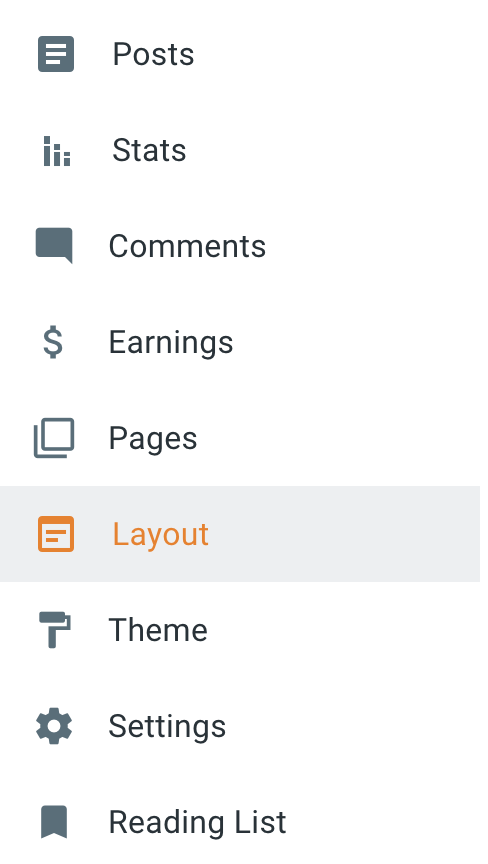
Step 3: A new page will open, and you will find the sections such as the header, sidebar, main body, etc.
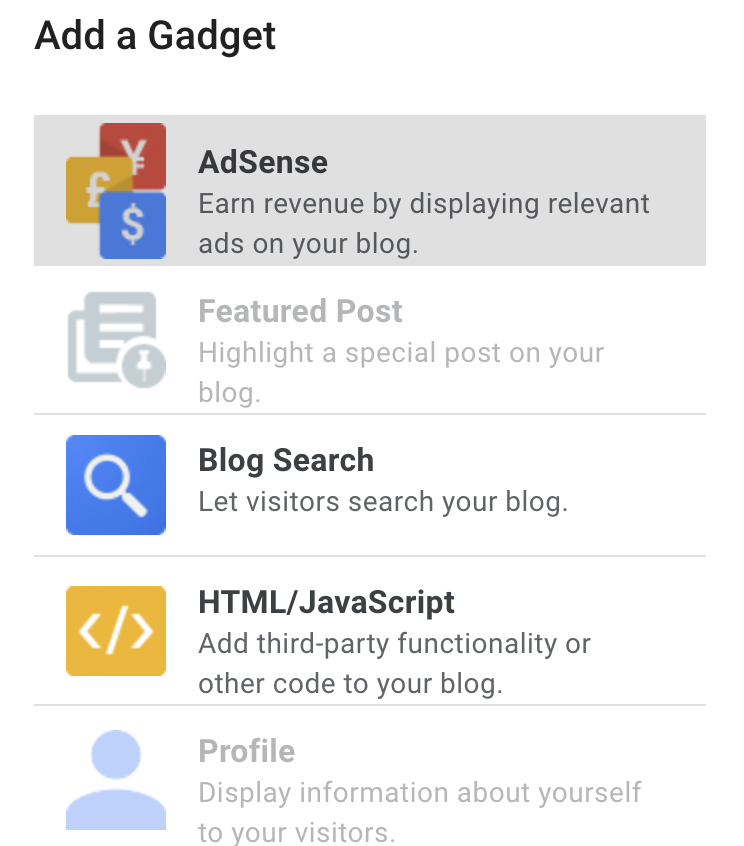
Step 4: In our case, we will be adding to the sidebar, so click on the add new gadget.
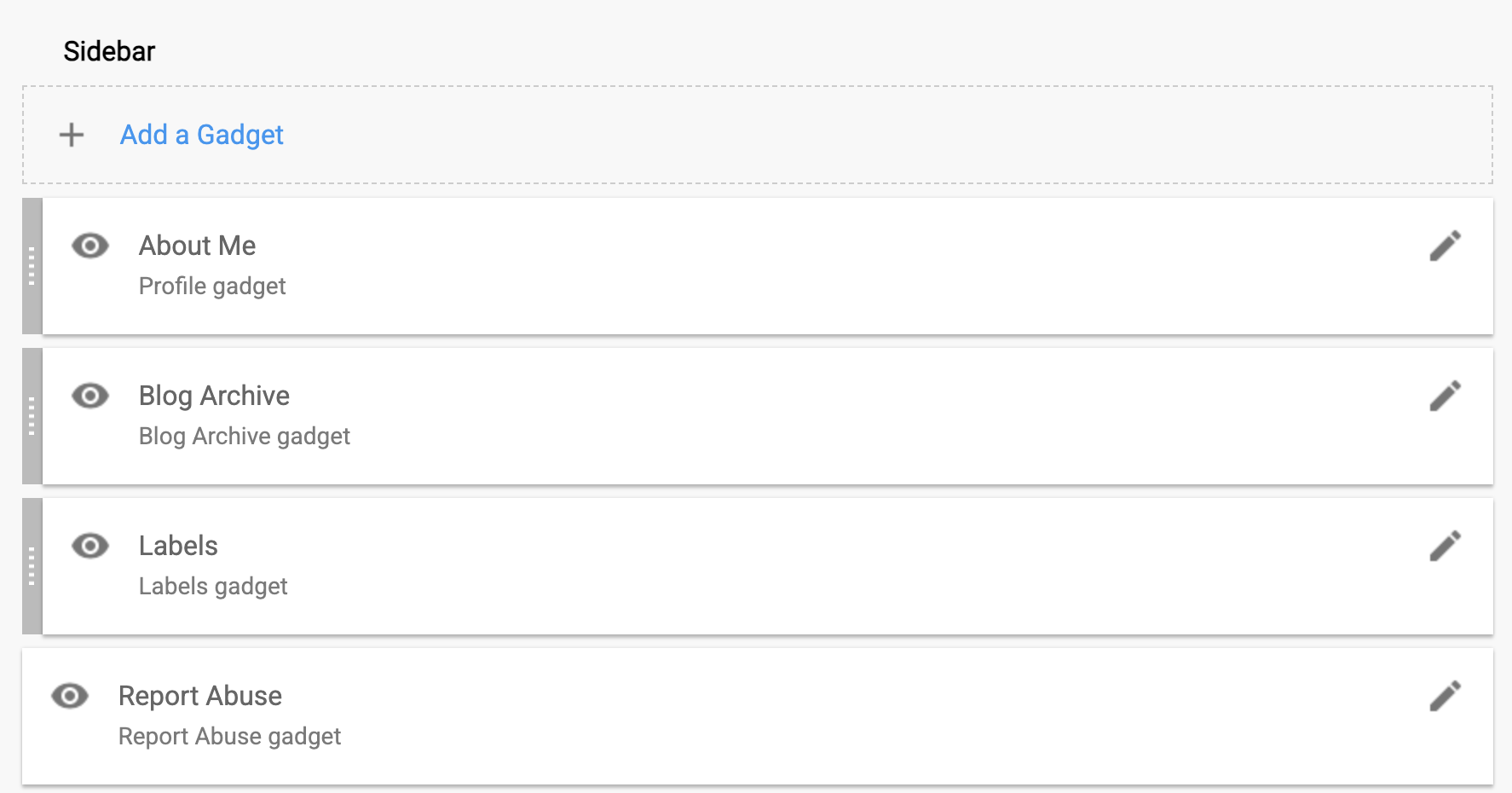
Step 5: After that, you have to choose an HTML/JavaScript gadget.
Step 6: A pop-up will appear; there, you can give the desired title, and in the content section, paste the HTML code you’ve copied from the above section.

Step 7: Once done, click on save and submit changes.
So that’s all. If you open your blog, you can find the buttons appearing on the sidebar.
Now, let’s move to the conclusion.
Conclusion on adding HTML CSS Buttons on Blogger
So in this article, we’ve discussed how you can add the 30 most used HTML CSS buttons on a blogger-based blog. We have shared the source code for each button, which you can just copy and paste into the desired section of your blog.
Plus, it’s 100% customizable, so you can make the necessary changes on your own, such as changing colour, changing text, and links. Please comment below if you would need any more help in this.